How To Root Galaxy Grand Duos GT-I9082


How Root Galaxy Grand Duos GT-I9082 :

NOTE - DO AT YOUR OWN RISK

To root galaxy grand duos you will have to installed the SuperSU file to it using the CWM Touch recovery. This is how you can do it. Make sure you have copied the SuperSU zip file to your phone.
  1. Turn off your phone and boot it into ClockworkMod Recovery: press and hold the Volume Up+Home (center) keys simultaneously and then  hold the Power key. Keep the three buttons pressed till the screen turns up, the Samsung logo blinks for two times. Release the power key now but keep the other two keys pressed till you see a list of options in blue text on black background with Android Robot.
  2. Make sure you see “ClockworkMod Recovery” written on the top of the recovery mode screen.
  3. Now tap “install zip from sdcard>> choose zip from sdcard”, navigate to the “UPDATE-SuperSU-v1.25.zip” and select it. Tap on “yes” when asked.
  4. Let the installation finish. It will take just a few seconds.
  5. When it is complete, tap on the “Go Back” option and then select “reboot system now” option from the main menu in recovery.
Your Galaxy Grand Duos GT-I9082 will now reboot and you will see “Android is upgrading” message while it boots up. Open app drawer and tap on the SuprSU app found there and update the binary if prompted. To verify the root, you can install and run the Root Checker app from the Google Play store.

HOW To Update Galaxy Grand Duos I9082 to XXAMC5 Android 4.1.2 Official Firmware

How to Install XXAMC5 [Firmware] Android 4.1.2 on Galaxy Grand Duos I9082

NOTE - DO AT YOUR OWN RISK

XXAMC5 Android 4.1.2 Firmware Details:

PDA: I9082XXAMC5
CSC: I9082ODDMB2
Version: 4.1.2

Please read every line carefully and make sure you read the tutorial once before actually performing on your device.


- This Tutorial For Galaxy Grand Duos (GT-I9082) User Only! Do Not Try It On Other Device Variants.

- Latest  I9082XXAMC5 Official Firmware From Samsung. Which Relish On 2013 March

Optional Tips :

1. Having problems connecting your Android phone to the computer? You need to enable USB debugging mode. See here: How to Enable USB Debugging — for Gingerbread, Ice Cream Sandwich and Jelly Bean.
2. Make sure your Android device is charged up to 80-85% battery level. This might help you: How to Check Battery Percentage. Why? Because, if your phone goes off suddenly while installing a custom ROM, flashing an official firmware update or installing mods etc. — your phone might get bricked or go dead permanently. No one wants that, right?
4. Most of the tutorials and how-to guides on Team Android are for factory unlocked Android phones and tablets. We recommend NOT to try our guides if your phone is locked to a carrier, unless we have specified the carrier name or device model.
Complete Step-By-Step Instructions

Step 1 - Download Android 4.2.1 I9082XXAMC5 Official Firmware For Galaxy Grand Duos I9082, To Computer & Extract Zip.

Step 2 - Download ODIN Multi-Downloader v1.85 Which Help You To Flash Latest Android 4.2.1 On Galaxy Grand Duos.

Step 3 - Now, Switch Off Your Phone & Reboot In Downloading Mode By Press & Hold (Volume Down + Home & Power Button
Note - Press (Volume Down + Home & Power Button) Till New Window With Construction Android Robot & A Triangle Comes. & Make Sure You Have Already Install Samsung USB Driver On Your Computer !

Step 4 - Open ODIN Multi-Downloader On Your Computer. Connect Your Phone To Your Computer While Your Phone Is In The Downloading Mode.
 
Step 5 - If Your Phone Is Connected Successfully With Computer, One Of The ID:COM Boxes Will Turn Yellow With The COM Port Number On ODIN Multi-Downloader. (This Step Might Take sometime.)

Step 6 - Now Select The Files That You Have To Flash/Install On Your Galaxy Grand Duos I9082. These Files Are To Be Found From The Extracted Files In Step 1.
  • Click On ‘PDA’ And Select File With ‘CODE’ In Its Name.
  • Click On ‘Phone’ And Select File with ‘MODEM’ In Its Name. (Ignore This Step If There Is No Such File.)
  • Click On ‘CSC’ And Select File with CSC’ In Its Name. (Ignore This Step If There Is No Such File.)
  • Click On ‘PIT’ And Select the .pit file. (Ignore This Step If There Is No Such File.)
Step 7 - In ODIN Multi-Downloader, Check The Auto Reboot and F. Reset Time Options. As For The Re-Partition Option, Check It ONLY If You Selected a .PIT File In The Above Step.
Step 8 - Now Click On The "START BUTTON" In ODIN. Installation Process Will Start And Would Take a Few Minutes To Complete. 
NOTE - DO NOT DISCONNECT YOUR PHONE AFTER CLICK ON "START BUTTON". 

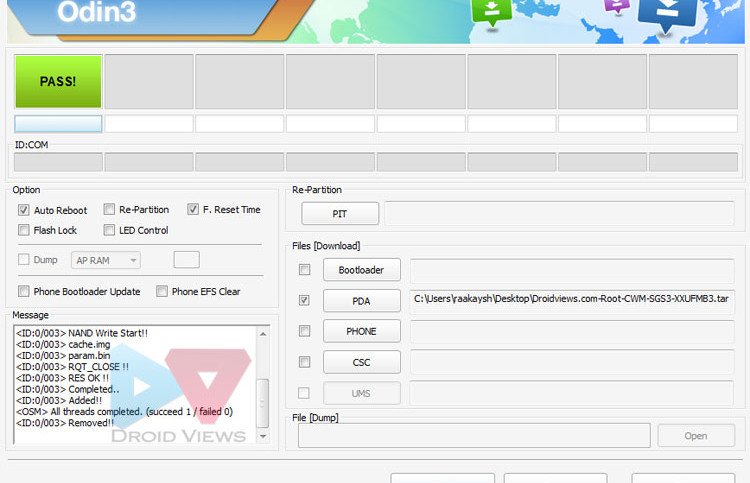
Step 9 - After The Installation Is Completed & ODIN SHOW "PASS" With Green Color, It Mean Your Phone Is Upgraded With Latest Firmware. 
Now Unplug Your Phone From The Computer.

That’s it. Your Samsung Galaxy Grand Duos Has Now Been Upgrade To Android 4.1.2 Build XXAMC5 Firmware. Go To Settings >> About Phone To verify.

How Install CWM Recovery on Galaxy Grand Duos GT-I9082

Install CWM Recovery on Galaxy Grand Duos GT-I9082: 

NOTE - DO AT YOUR OWN RISK

Before you do anything, please take care of the following things:
  • Download the Odin flasher tool and unzip it on your desktop: Odin3-v3.04.zip
  • Download and install the Samsung USB Drivers or Samsung Kies on your computer so that your phone and computer could communicate with each other.
  • Download the ClockworkMod Touch Recovery file. In case you get “md5 hash tag signature error”, try removing the .md5 extension from the file and install again: CWM_gt_i9082.tar.md5
  • Charge your phone to have at least 70% of battery level.
  • Usually rooting does not affect any of the files saved or installed on your phone, yet we’ll recommend you to sync and backup you contacts, messages, apps, etc.
  • Open phone Settings> Developer Options and turn on USB Debugging mode by checking the box.
Having made the required preparations as suggested above, you can now have some action time. If you are new to it, may be you feel a little nervous- a natural reaction! Anyways follow the following instructions to install the ClockworkMod Touch Recovery to your Galaxy Grand Duos:
  1. Turn off your Galaxy Grand Duos and boot it into Download/Odin mode: Press the Volume Up+Home buttons together and then hold the Power button for 3 seconds. You will see a warning screen asking you to press the Volume Up key to continue. Press it to enter the Download Mode.
  2. Now open the Odin folder and launch Odin3 v3.04.exe
  3. Connect your phone to PC via USB cable and wait for a few seconds till Odin detects your phone and you see ID:COM port turning to light blue and “Added!!” text below at message box. If you do not see this, check you have installed the Drivers and also that Kies (if installed)  is not opened during the procedure.
  4. Make sure that only “Auto Reboot” and ”F Reset Time” options are checked on Odin
  5. Now click on the PDA button and select the  "CWM_GT_I9082_.tar.md5″  file.
  6. Finally, hold you breath and hit the “Start” button on Odin. Let the installation finish.root-galaxy-s3-odin-4.2.1-jb
  7. And when it is done, you will see “PASS!” message at ID:COM and your phone will reboot automatically. You can now disconnect the USB cable.
When your phone boots up, it will have CWM Touch Recovery installed on it. It is time now to flash the rooting package to your Galaxy Grand Duos.

Samsung Galaxy Grand Duos I9082 Spacifications

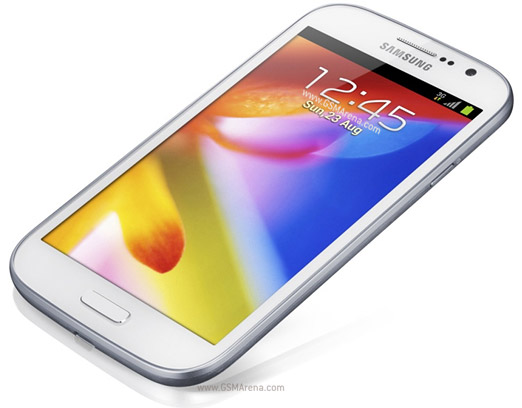
Samsung Galaxy Grand I9082 
 
GENERAL FEATURES
In Sales Package Battery, Headset, Data Cable, Flipcover, Handset, Charger
Form Bar
SIM Dual SIM, GSM + GSM, (Dual Standby)
Touch Screen Yes, Capacitive
Business Features Document Viewer, Pushmail
Call Features Conference Call, Speed Dialing, Hands Free, Loudspeaker, Call Divert
Handset Color Elegant White
 
Platform
Operating Freq GSM - 850, 900, 1800, 1900; UMTS - 2100
OS Android v4.1 (Jelly Bean)
User Interface TouchWiz 4.0
Java Yes
Processor 1.2 GHz, Dual Core
Display
Size 5 Inches
Resolution WVGA, 480 x 800 Pixels
Color 16 M
Other Display Features Multi-touch
 
Camera
Primary Camera Yes, 8 Megapixel
Secondary Camera Yes, 2 Megapixel
Flash LED
Video Recording Yes, 1920 x 1080, 30 fps
HD Recording HD, Full HD
Zoom Digital Zoom - 4x
Other Camera Features Auto Focus, Geo-tagging, Touch Focus, Face and Smile Detection, Image Stabilization, Shot Mode (Single, Panorama, Smile Shot, HDR, Beauty, Share shot, Buddy Photo Share), Image Editor
 
Dimensions
Size 76.8x143.5x9.6 mm
Weight 161 g
 
Battery
Type Li-Ion, 2100 mAh
Talk Time 10 hrs (3G)
Standby Time 440 hrs (3G)
 
Memory and Storage
Internal 8 GB
Expandable Memory microSD, upto 64 GB
Memory 1 GB RAM
 
Internet & Connectivity
Internet Features Email
Preinstalled Browser Android
GPRS Yes
EDGE Yes
3G Yes, 21 Mbps HSDPA; 5.76 Mbps HSUPA
Wifi Yes, 802.11 b/g/n
USB Connectivity Yes, micro USB, v2
Tethering Wi-fi Hotspot
Navigation Technology A-GPS, GLONASS, with Google Maps
Bluetooth Yes, v4, Supported Profiles (A2DP, AVRCP, OPP, SAP, HID, PBAP, HFP, GAP, SPP, PBA)
Audio Jack 3.5 mm
 
Multimedia
Music Player Yes, Supports MP3, WAV, FLAC, eAAC+
Video Player Yes, Supports H.263, WMV, H.264, MP4, Full HD
FM Yes
Ringtone 128 Polyphonic, MP3, WAV
 
Other Features
SAR Value 0.316 W/Kg
Call Memory Yes
SMS Memory Yes
Phone Book Memory Yes
Sensors Proximity Sensor, Accelerometer, Compass, Gyro Sensor
Additional Features Predictive Text Input, Calendar, MMS Enabled, Mini SIM, Clock, Calculator, Call Barring, Call Waiting, Offline Mode, Own Number Indication, Voice Input
Important Apps Google, Gmail, YouTube, Google Talk, Picasa, Instant Messaging
 
Like us on Facebook
Follow us on Twitter
Recommend us on Google Plus
Subscribe me on RSS